Slide 01
Session 1

Welcome to the Business Automation Mastermind

Today we set the container, get your tools installed, and build something real before you log off.

Part 1Welcome, portal, and agreements
Part 2Set up Claude Code and your first manager
Part 3Build your first birdhouse
Slide 02
You are not the first

People who started exactly where you are

Three cohorts have already come through this room. Most of them arrived saying they were not technical.

They did not become engineers.
They built the thing their business needed.
Watch what they saidThe graduation videos are on the site. When you get stuck in week three, go watch someone who was stuck in week three too.
Slide 03
Read this before anything else

This is not a course you watch

It sits in between three things, and it is deliberately none of them on their own.

An AI classYou learn the tools properly. Real skills, hands on the keyboard, not theory.
A business acceleratorEvery tool gets pointed at your actual revenue and your actual bottleneck.
A group mastermindWe build it together. What one person solves, the whole room gets.
Slide 04
Choose your path

Ways to Experience This Mastermind

There are four ways to work through this, depending on how you like to learn. Pick the one that fits you, and switch any time.

Slide 05
At a glance

The four ways to experience it

From fully live and supported to fully self-paced. The rest of this section breaks down each one: what it means, the pros and cons, and who it is for.

  • Option 1The Full Experience
    Join the live two-hour session every week and build through it together, with instant support.
  • Option 2The Pre-Prepared Way
    Watch the modules first, work on your own, and join live only if you get stuck.
  • Option 3Watch the Replays
    Catch up after the live session happens, on your own schedule, with every section labeled.
  • Option 4The Focus Sprint
    Batch several sessions every couple of weeks to move fast in focused blocks.

One thing stays the same: whichever way you choose, please check in at least once a week so I can keep you on track.

Slide 06
What it means

Option 1: The Full Experience

Join the live two-hour session every week, where we work through the material together, live.

First 15 minutes: Check-ins

See where everyone is, share struggles, and celebrate the week's wins to inspire each other.

Core session: We build together

I walk you through the whole session inside the portal, stopping so the TAs and I can help anyone who is stuck.

Last 15 minutes: Troubleshooting

We tackle the bigger problems, with extra time afterward for personal attention when I am available.

Wrap-up: Move the needle

Post-session tasks that put the skills to work: grow revenue, cut costs, and automate your processes.

Slide 07
Pros, cons & fit

Option 1: The Full Experience

Pros
  • Instant, live support while you work
  • Feel safe, supported, and part of the group
  • Celebrate wins and get inspired by the cohort
  • Sidebar knowledge from other people's questions
Cons
  • Two hours of live time every week
  • You move at the group's pace
  • You sit through other people's tech support
Who this is for People who like to feel safe and supported, and who want instant help while working through the session.
Add-on When I am available, I stay on after the session for extra personal attention so everyone gets caught up.
Slide 08
Pros, cons & fit

Option 2: The Pre-Prepared Way

Watch the concise, pre-recorded modules before the session, work through it on your own, and drop into the live call only if you get stuck.

Pros
  • Highly efficient: no waiting on anyone else
  • Shorter, more concise videos
  • Finish faster and feel ahead
  • Live session is still there as a safety net
  • Skip the full call; the replay is always there
Cons
  • You may feel disconnected from the cohort
  • You miss some community and inspiration
  • You miss the sidebar knowledge shared in Q&A
Who this is for People who want to minimize live time and are comfortable working on their own and diagnosing problems.
Special request Message the group when you finish a session on your own, so I can log your progress and keep eyes on you.
Slide 09
Pros, cons & fit

Option 3: Watch the Replays

Watch after the live session happens. You get both the edited modules and the full live recordings.

Pros
  • Both the concise videos and the full live recordings
  • Live replays hold real tech-support gold from others
  • Every section is labeled: jump to what you need
  • Watch on your own schedule
Cons
  • No immediate help; post in the group instead
  • You can lose some of the group connection
  • Easier to feel like you are falling behind
Who this is for People who prefer to learn on their own time and are fine getting help asynchronously in the group.
Special request Stuck on a replay? Post inside the group and request help from me or one of the teaching assistants.
Slide 10
Pros, cons & fit

Option 4: The Focus Sprint

Do multiple sessions every couple of weeks, watching several replays in a row to bang things out quickly.

Pros
  • Move fast in focused, dedicated blocks
  • Great for momentum when you have the time
  • Cover a lot of ground in one sitting
Cons
  • No immediate support while you work
  • You may feel disconnected or behind the cohort
Who this is for Self-directed people who like to work in intense bursts rather than a steady weekly rhythm.
Special request Check in between sprints so I know where you are and can catch you before you drift behind.
Slide 11
If you are not joining live

Whatever you choose, please check in

Do a quick check-in at least once a week so I can keep track of your progress, keep eyes on you, and make sure you never fall behind.

  • Message the group when you finish a session on your own, so I can log your progress
  • Pop into the first 15 minutes to celebrate wins and say hello, then bow out
  • Or join near the end of the live call to bring any questions
  • Get stuck working solo? Jump into the full live session any time to learn
One thing I ask At least one quick check-in a week: your struggles, or your wins. I always love hearing your authentic wins and appreciation.
Slide 12
A note on working ahead

Please don't race far ahead

This mastermind is paced on purpose: each session is a step in a specific three-month journey, with time built in to integrate each lesson and upgrade your business.

  • I change the material every week to serve the current cohort
  • Future sessions may look completely different from what you preview
  • I will not stop you, but the TAs and I cannot support questions about future sessions
The rhythm is the point Working one session at a time, on pace, is what lets the changes actually stick in your business.
Slide 13
Why this is not like the last program you bought

Most programs hand you information. This one hands you output.

Other programs
  • You watch modules and take notes
  • The content is fixed before you arrive
  • You finish with a folder of ideas
  • Support is a comment box
This mastermind
  • You build during the session, live
  • The content bends to what the room needs
  • You finish with things that run without you
  • Support is a room of people building the same week
Slide 14
Your business is the curriculum

We build this together, around what you are actually trying to fix

Bring the real problem. The messy one you have been avoiding. That is the one we point the tools at.

  • Tell us the bottleneck, not the polished version
  • Ask in the room, not in your head
  • What you build gets shared back so nobody solves it twice
This only works if you speakA quiet member gets a course. A member who speaks up gets a mastermind. Same price.
Slide 15
The one ask

Keep up with the course

The prep is deliberately small. It is not homework for its own sake, it is the setup that lets the live session actually build something.

Minimal prepShort videos and a setup step. Usually under thirty minutes.
Do it before we meetIf your tools are not installed, you spend the session installing instead of building.
This is your businessNobody is grading you. The cost of falling behind gets paid out of your own revenue.
If you fall behind, say soDo not go quiet and drift. Everyone who drifted regretted it, and everyone who spoke up got caught up fast.
Slide 16
Part 1

Welcome and Introductions

Who is in the room, how the portal works, and the agreements we all run on.

Slide 17
Quick check

Who watched the welcome video?

Honest hands. There is no wrong answer, it just tells me how much to cover right now.

  • Watched it, ready to go
  • Started it, did not finish
  • Did not know there was one
If you have not watched itIt is in the portal under Session 1 prep. Watch it tonight. It covers the ground we are about to move fast over.
Slide 18
Round the room

Thirty seconds each

Keep it short. We have a lot to build today.

  • Your name and where you are joining from
  • What your business actually does
  • The one thing you want automated by the end of this
Write the last one downThat answer is your north star for the next twelve weeks. We will keep coming back to it.
Slide 19
Your home base

Let us walk through the portal

Everything lives here. Sessions, prep, replays, agreements, and the resources for each build.

SessionsEach one has its prep, the live guide, and the replay afterwards.
Prep firstDo the prep section before we meet. It is short on purpose.
ReplaysEvery session is recorded. Miss one and you are not lost.
ResourcesPrompts, install steps, and the files we use live.
Slide 20
How we treat each other

The mastermind agreements

These are in the portal too. Read them properly. They are short, and they are the reason this room works.

  • What is said here stays here
  • Show up on camera when you can
  • Ask the question you think is too basic
  • Share what worked, not just what you are proud of
  • No pitching the room
Read them this weekThey are in the portal under the agreements section. Two minutes, and it sets the tone for twelve weeks.
Slide 21
The rhythm

How this mastermind actually runs

Live sessionsWe meet, we build together, and you leave with it working.
Prep betweenSmall setup so the live time goes to building, not installing.
The groupAsk between sessions. Answers come from members too, not only me.
Your buildEvery module points back at your own business.
Slide 22
Part 2

Setup and Tools

We install the thing that does the work, then the manager that tells it what good looks like.

Slide 23
The main tool

Claude Code, right inside the Claude desktop app

You do not need a terminal and you do not need to be a developer. It lives in the app you already have open.

It reads and writes filesIt works on real things on your computer, not just chat replies.
It runs the stepsYou describe the outcome. It does the work and shows you what it did.
It stays in one placeSame app, same window. Nothing new to learn how to open.
Slide 24
Do this now, together

Getting Claude Code running

  • Open the Claude desktop app
  • Turn on Claude Code from the settings panel
  • Point it at a new folder for your work
  • Say hello to it and watch it answer
Nobody moves on aloneIf yours is not working, say so in the chat now. We fix it in the room, not after.
Slide 25
Your first manager

Install the Web Design Manager

Claude Code can build. The Web Design Manager tells it what good design looks like so you do not have to know.

It carries the tasteLayout, spacing, and type decisions you would otherwise have to learn the hard way.
It reviews the workIt looks at what got built and pushes back before you have to.
It is reusableInstall it once. Every site you build from here uses it.
This is the patternA manager is a set of standards you install once and reuse forever. You will build your own later.
Slide 26
Part 3

Build Your First Birdhouse

Small, simple, and finished today.

Slide 27
Why we start small

In shop class, nobody starts with the house

You start with a birdhouse. Not because anyone needs a birdhouse, but because it teaches you the hammer, the nails, and the saw.

The birdhouse is not the point.
The hands are the point.
Then you build the real thingOnce the tools feel normal in your hands, we point them at the parts of your business that actually make money.
Slide 28
Right now, together

Build a very simple website

One page. Nothing clever. The goal is to go from an empty folder to something you can look at in a browser.

  • Tell Claude Code what the page is for
  • Let the Web Design Manager shape how it looks
  • Open it in your browser and look at it
  • Change one thing and watch it update
Finished beats goodDo not polish it. Get it on screen, then move on. We are learning the swing, not building the house.
Slide 29
Before you close your laptop

What you should have by the end of today

Tools installedClaude Code running, and the Web Design Manager in place.
One thing builtA simple page you made yourself, on your own machine.
One thing namedThe part of your business you want automated first.
Between now and next sessionDo the prep, and bring the real bottleneck. That is what we point everything at next.
Slide 30
Session 2: Building Your First Website with AI

Build a first website you can actually use

Today you set up the tools, make an original page for your business, preview it, and put it live.

Slide 31
Bring the raw material

Write down what your first page needs to say

Your businessYour name, one sentence on what you do and who you help, plus three services.
Your next stepThe link or action you want people to take after they understand the page.
Your directionYour brand colors or the feeling you want the page to have.
Bring the rough versionOne clear paragraph and a short list are enough. We can make it better once it is on screen.
Slide 32
Gather your photos

A few clear images are enough to start

Bring one good photo of yourself and any brand or business images you want the page to use.

  • Choose clear, well-lit photos
  • Headshots and candid images both work
  • Bring a few options so you can decide what fits the page
  • If something is missing, use a clean placeholder and name it
Slide 33
Keep what is useful, then move cleanly

If you already have a website, bring its content and assets

WordPressUse the WordPress Escape Kit if you are moving from an old WordPress site.
Wix or SquarespaceUse the matching Escape Kit to preserve your copy and assets before you rebuild.
ShopifyUse the Shopify Escape Kit when your existing store is the source material.
Start with the real materialSave your existing copy and gather your assets. If needed, bring down the full site instead of only a few pages.
Slide 34
A two-hour working session

From Claude Desktop to a live first page

Set upOpen Claude Code, GitHub, and the tools that make building possible.
BuildUse a public reference for direction, then create an original responsive page.
PublishPreview it locally, connect it to Vercel, then check the live version.
The pointYou are not here to become a web developer. You are here to make the first useful version of the thing your business needs.
Slide 35
Start in Claude Desktop

Open Claude Code and choose your working folder

  • Open Claude Desktop and sign in
  • Click Code at the top left
  • Confirm that your working directory appears above the prompt box
  • Stay in the app for the rest of this session
Small checkIf Claude Code is open and the folder is visible, you are ready for the next step.
Slide 36
Set up a safe starting point

Create or sign in to GitHub, then star WebFetch

GitHub gives your project a home online. Starring the public WebFetch repository gives you a clear path back to the official project.

Sign inUse a free personal GitHub account.
Star the public repoUse the official WebFetch repository, not a downloaded zip file.
Keep the source clearReturn to the official project whenever you need it.
Slide 37
Install once, then reuse

Set up the website-building tools

WebFetchStudies a public reference before you build your original version.
Agent BrowserLets Claude check the page it built in a real browser.
Vercel, RTK, and the workflowGive you a way to deploy, work efficiently, and verify what is actually usable.
Do this carefullyLet Claude finish its verification. Install only the missing pieces, and do the setup once per computer.
Slide 38
Direction, not duplication

Bring a public reference site, then make your own version

  • Study the structure, hierarchy, spacing, color direction, and responsive behavior
  • Tell Claude about your business, offers, and the files you want to use
  • Build an original mobile-responsive Next.js page
  • Use your own assets, or clean placeholders for anything missing
The ruleDo not take the reference site’s images or copyrighted source. Keep the useful design direction, then make the implementation your own.
Slide 39
Build the useful version first

Give your first page one clear job

Who it is forName the person you are trying to help in plain language.
What changesShow the problem you solve and the result they can expect.
What happens nextGive the visitor one clear action to take.
Keep it honestUse only the business information and files you supplied. If an image or fact is missing, leave a clean placeholder and name what is missing.
Slide 40
Look at the work while it is still local

Preview the page, then change one thing at a time

  • Run the local development server in the website folder
  • Open the localhost address that Next.js reports
  • Look at the hero, services, images, and the call to action
  • Ask Claude for one concrete change, then see the result before asking for another
First rule of editingDo not try to solve the entire website in one prompt. Small changes teach you how the page works.
Slide 41
Make Vercel ready

Create a Vercel token, and keep it private

Vercel will host the live version of your site. The token connects your project to your own Vercel account.

Create your accountSign in or create a free Vercel account.
Create one tokenName it for this project and copy it somewhere private.
Keep it out of public filesSave it only in an ignored .env file. Never put it in Git, code, screenshots, or a message.
Slide 42
Put it live

Connect the project to Vercel and deploy to production

  • Confirm you are in the right website folder
  • Confirm .env is ignored and the Vercel CLI works
  • Link the project to your Vercel account without displaying the token
  • Deploy, then copy the real production URL Vercel returns
Do not skip the guardrailKeep the standard Next.js runtime for future app features. Do not turn this into a static-export-only project.
Slide 43
Check the real thing

Preview the production site before you share it

Check desktopHero, services, photos, CTA, buttons, and links all load.
Check phone widthLook for clipped text, broken images, and awkward spacing.
Check the browserNo visible errors, broken images, or dead links.
If something is wrongName the problem clearly and get approval before changing the live site. Keep the last working deployment available if a rollback is needed.
Slide 44
Add polish with restraint

Use effects to support the page, not decorate it

MovementSubtle hero motion, scroll reveals, or a gentle gradient mesh.
DepthGlass cards, light grain, and a fixed glass navigation bar.
InteractionButtons that lift, a quiet glow, card tilt, or smooth scrolling.
Keep the content intactOnly ask for effects that strengthen your brand. Use real stats only, and leave the stats section out when you do not have them.
Slide 46
Keep making it yours

A first website is allowed to keep changing

  • Change the colors to match your brand
  • Add a testimonials section when you have real testimonials
  • Adjust the hero headline so the value is clearer
  • Add a contact path that makes sense for your business
There are no wrong movesTry one change, see what happens, and keep the version that feels more like your business.
Slide 47
What you built today

You now have a website foundation you can keep making your own

Tools readyClaude can build and inspect a website with the right setup.
Original first pageYour business now has a responsive page built from your own material.
Live version checkedYou know how to deploy and verify the real site before sharing it.
Slide 48
Session 4

Creating Your Second Brain, Voice Profile & Putting It in Your Pocket

We take everything you have ever told an AI and turn it into an organized folder Claude Code can read. By the end, Claude knows who you are, what you are building, and what matters to you.

Part AOpen Claude Code
Part BConnect any more sources
Part CInstall Speak Human
Part DCreate your second brain
Part EClaude on your phone
Slide 49
Where we start

What Claude knows about you when you say hello

Nothing. Every session starts from zero. That gap is what today closes.
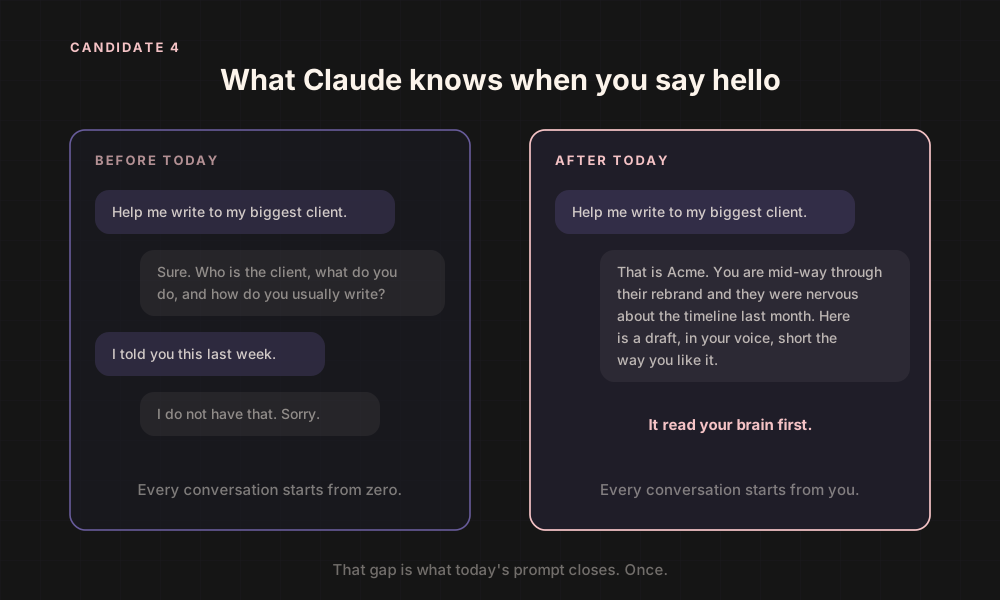
Before: Claude knows nothing when you say hello. After: Claude opens your second brain and already knows your business.
Slide 50
What you will walk away with

By the end, your AI works like it knows you

A second brainOne folder on your Desktop, brain_dump_map, with your projects, clients, offers and ideas as small named files plus a master index.
A voice profileBuilt from at least five pieces of your real writing. Anything outward facing gets written the way you actually sound.
Context files everywhereSOUL.md, USER.md and CLAUDE.md move to your home folder so every session on your machine starts knowing you.
Claude in your pocketRemote Control and Dispatch, so the session your brain lives in is on your phone wherever you are.
Slide 51
Part B · Skip if not applicable

Connect any more sources you want your second brain to take from

Composio is already set up. Open Connect, look at what is linked, add anything that holds information about you: Gmail and Drive first, then Dropbox, Notion, whatever you actually use.
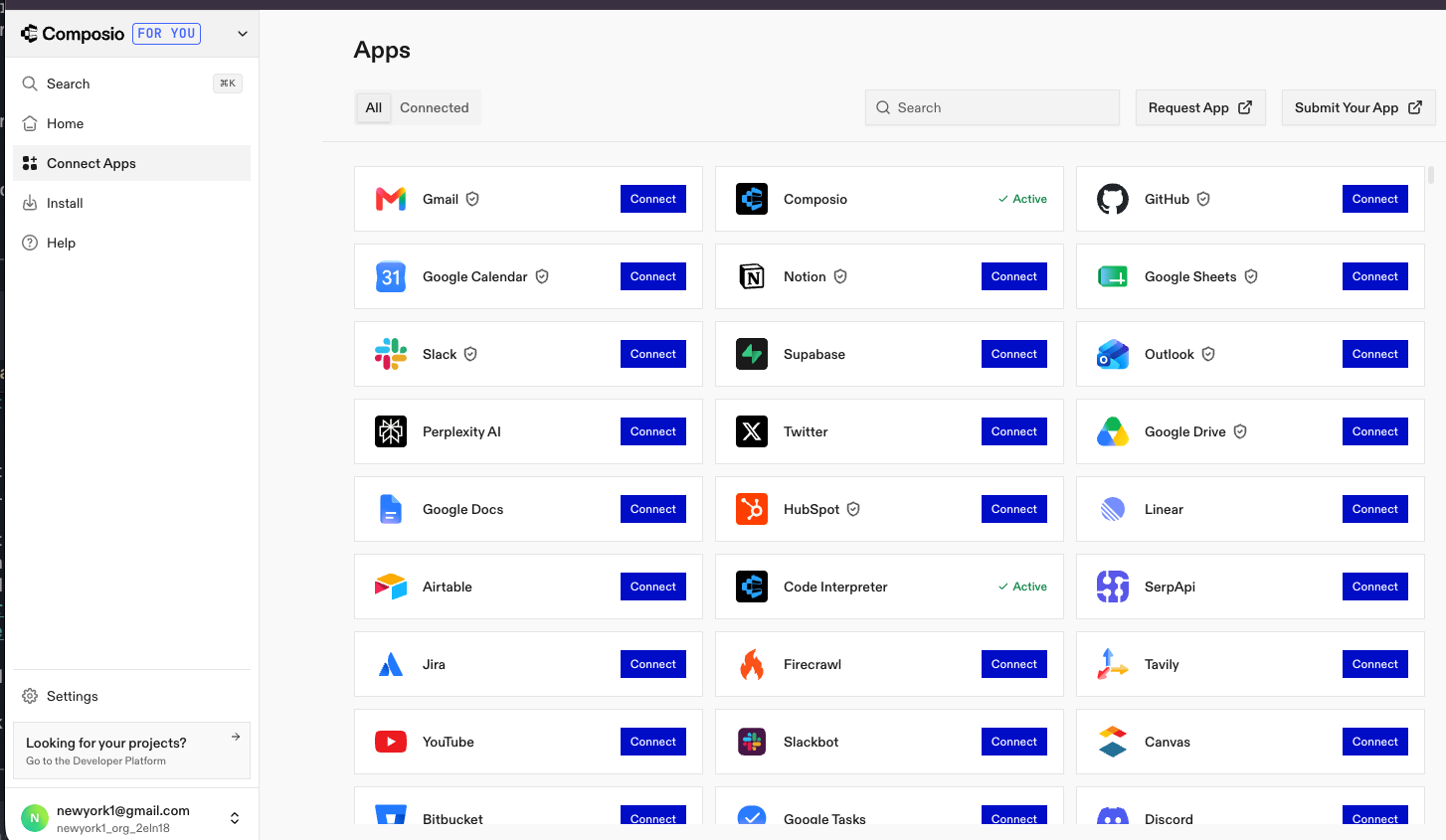
Composio connected apps screen showing Google Drive and Gmail connected
Slide 52
Part C · What Speak Human does for you

The skill that makes Claude write like you instead of like a robot

  • Turns AI-sounding drafts into something you would actually send
  • Keeps facts, dates and numbers exactly as written
  • Works on emails, posts, website copy and anything outward facing
  • Gets better every time you correct it
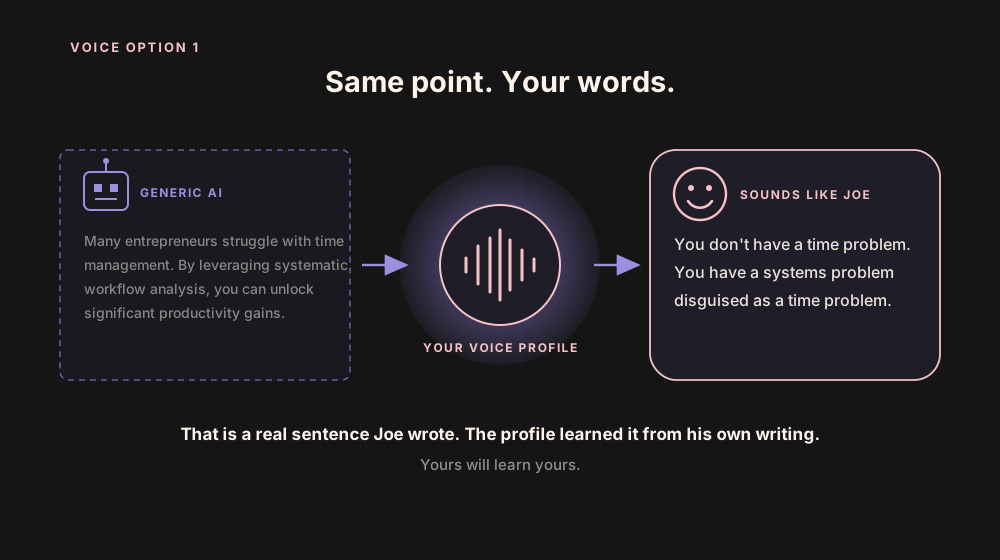
Install first, build secondOne prompt from the portal installs it and proves it works. The mega prompt in Part D then uses it to build your voice profile from your own writing.
A generic AI sentence passing through the voice profile and coming out as a real line of Joe writing
Slide 53
Part D · Create Your Second Brain

Everything you have ever told an AI, turned into something Claude can actually use

Your past ChatGPT and Claude exports, your connected apps and your writing samples, processed in one single pass.
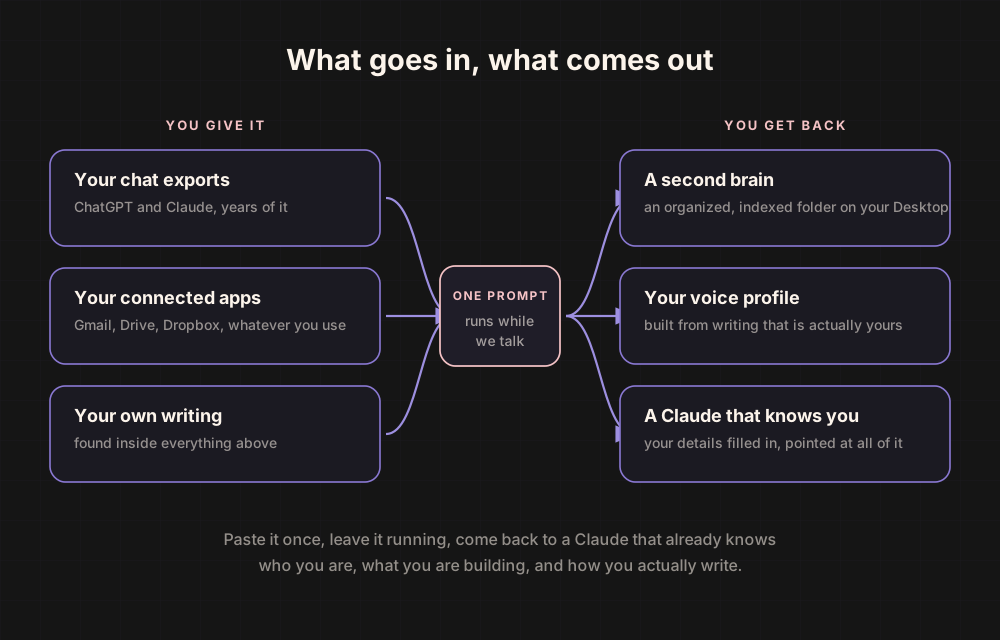
Three inputs, chat exports, connected apps and writing samples, turn into a second brain, a voice profile and a personalized Claude
Slide 54
The idea behind the folder

A pile of notes becomes a library with a card catalogue

  • One small file per thing: a project, a client, an offer, an idea
  • Every folder has an _index.md, one line per file
  • BRAIN_DUMP.md at the root is the master index Claude reads first
  • Claude scans the index, then opens only the one or two files it needs
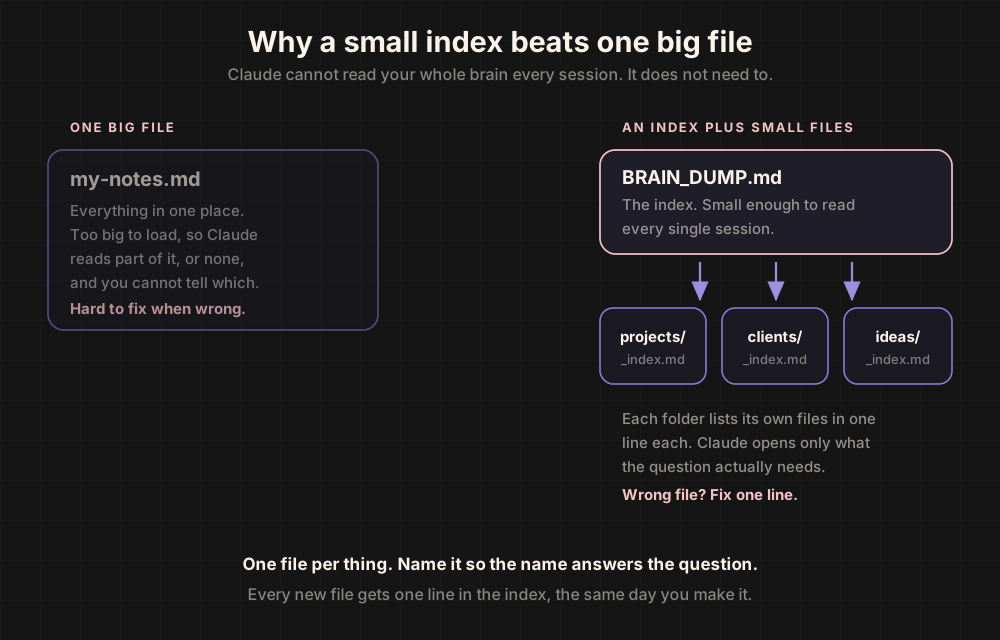
Why it mattersClaude cannot read your whole brain every session. A small index means it finds the right note fast without burning tokens on thousands of lines of raw notes.
A small index file on top of many small note files. Claude reads the index first, then opens only what it needs.
Slide 55
Part D · Step 5

Paste the mega prompt and let it run

  • Ingests your ChatGPT and Claude exports, plus LinkedIn or Instagram if you dropped one in
  • Pulls documents and sent emails from your connected apps
  • Organizes your work, projects and ideas inside brain_dump_map
  • Builds your voice profile from your genuine writing samples
  • Promotes and updates your context files so Claude understands you in every session
  • Schedules a daily refresh so it never goes stale
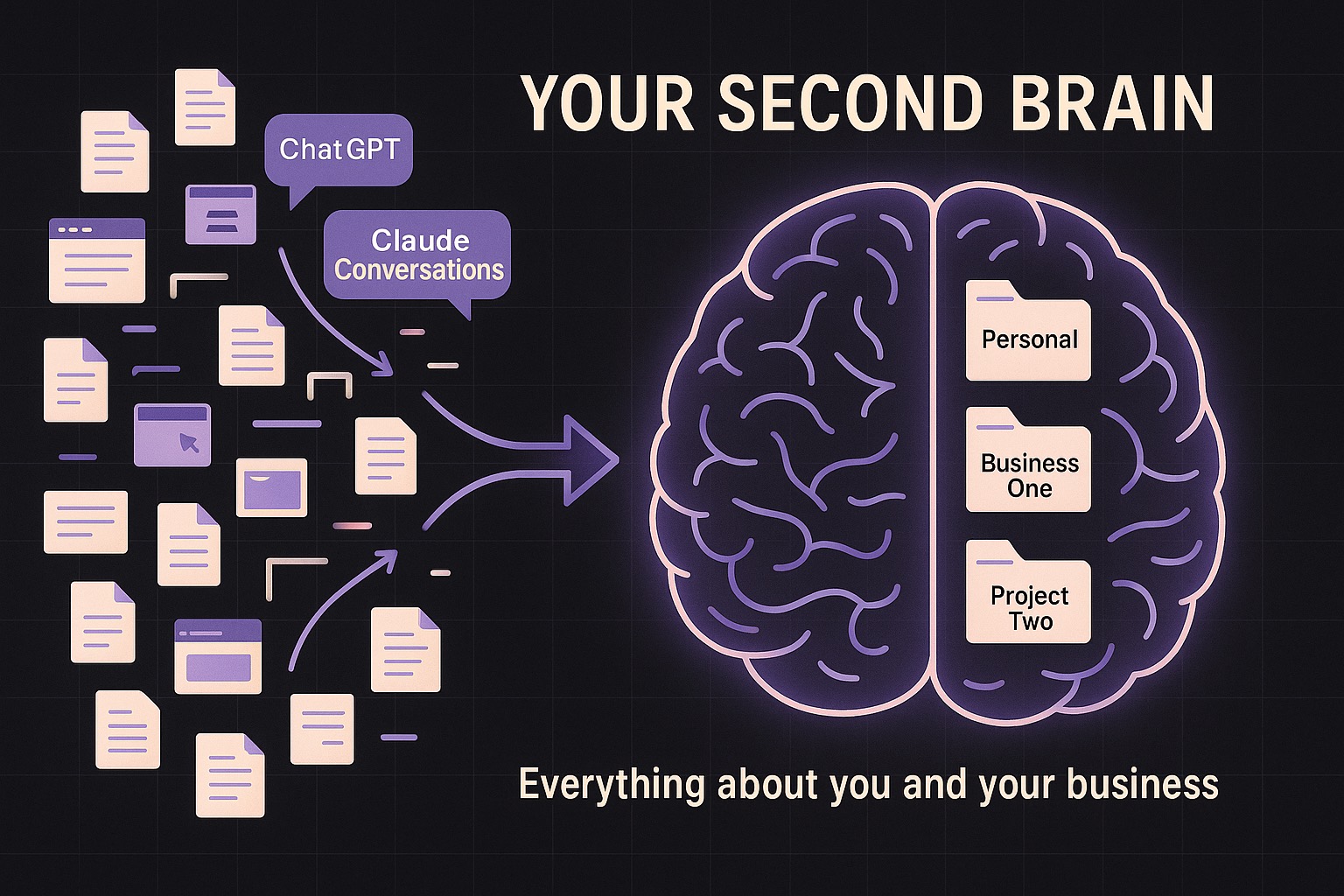
Scattered conversation history becoming an organized project map
Runs in the backgroundFill in MY_URLS at the top, paste, send. It takes a while. Keep listening to the workshop while Claude processes your files.
Slide 56
What the prompt is doing while you wait

Thirteen steps, one pass, and it can resume if it stops
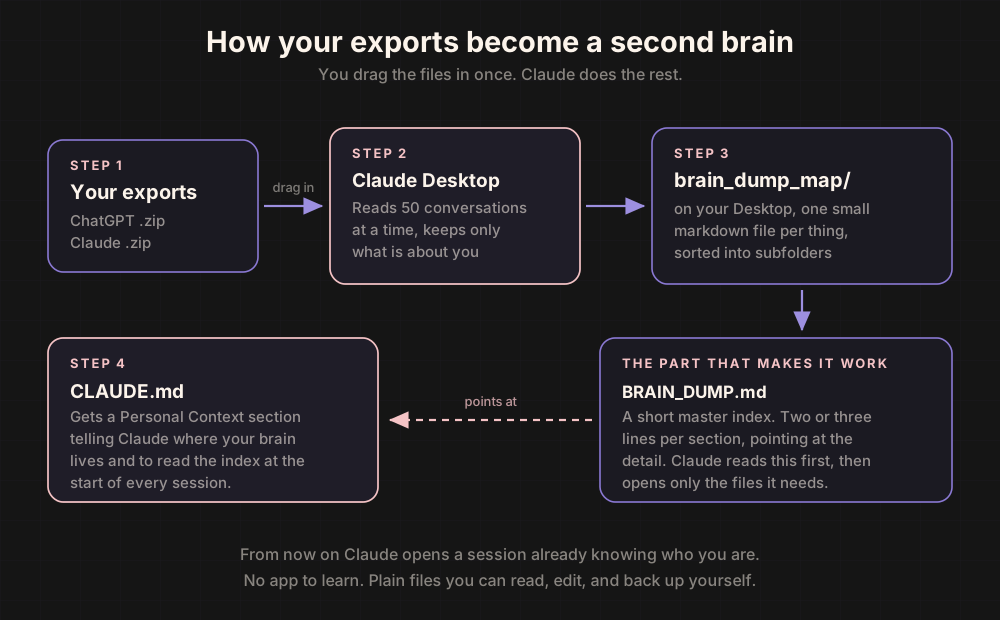
The brain dump pipeline: detect the machine, check for an existing brain, ingest, pull from apps, organize, index, clean up, find real writing, build the voice profile, move context files, fill USER.md, teach CLAUDE.md, schedule the refresh, verify
If Claude stops mid-wayPaste: Continue from where you left off. Check _progress.md. It picks up at the last completed chunk.
Slide 57
Part D · Step 6

See your second brain as a map

Before you read anything, look at the shape of it.

  • Reads BRAIN_DUMP.md and PROJECTS.md, changes nothing
  • Draws one picture: folders as boxes, projects and clients inside them, lines where they connect
  • Saves it as one web page inside brain_dump_map and opens it in your browser
  • Tells you which part is fullest and which needs more from you
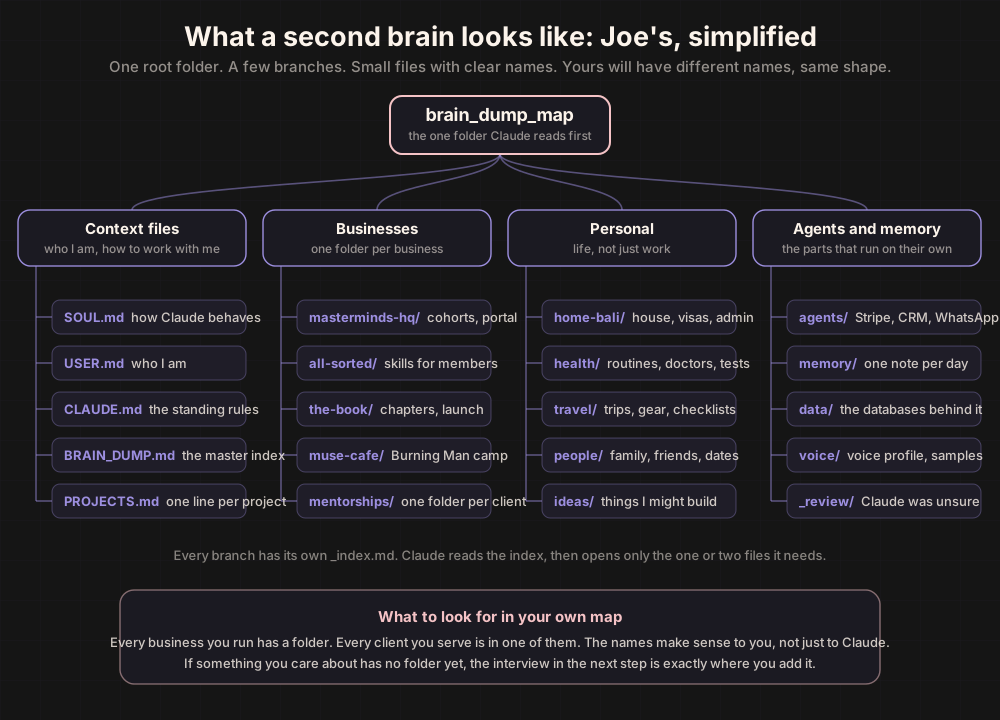
A simplified map of a second brain: one root folder, four branches, small named files under each
Slide 58
Part D · Step 7

Review what it built and fill the gaps

First, it shows offThe three or four things it now knows about you. Your projects and clients with the status it inferred. Two things you seem to care about that you never said out loud. One sentence in your voice.
Then it checks itselfIt tells you what it is least sure about and where the evidence was thin.
Then it interviews youOne question at a time, most valuable first. Every answer is saved into the right file, and it tells you where.
When it is wrongTell it. It fixes the file it lives in, not just the answer, and confirms what changed.
Slide 59
Part E · Claude on Your Phone

Two ways your phone talks to your laptop

This is the "in your pocket" half of today. Two features both use your phone, and mixing them up is why people think it is broken. It is not. They do different jobs.
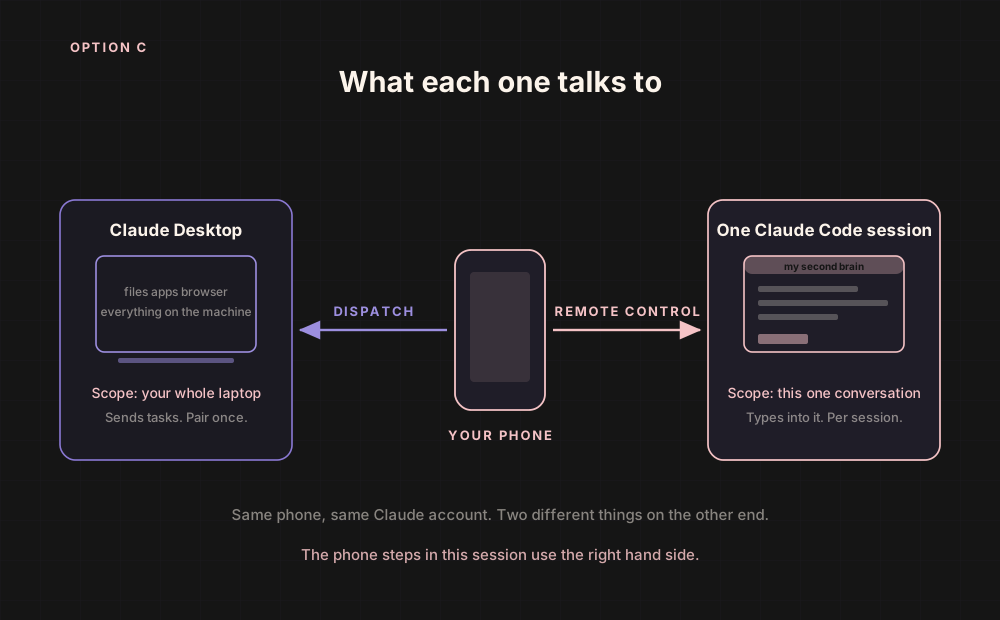
Same phone, same account. Remote Control on one side reaching one conversation, Dispatch on the other reaching the whole laptop.
Slide 60
Remote Control vs Dispatch

Looking over the shoulder of one window, or texting an assistant at your desk

Remote Control
  • Your phone sees and types into one specific Claude Code conversation on your laptop
  • The one your second brain lives in
  • Per conversation. This is what today uses
Dispatch
  • Your phone hands your whole laptop a task from anywhere
  • Claude on the laptop does it with your files, apps and browser
  • Pair once. Not tied to any conversation. The bonus
Today is Remote ControlIt is what puts the session your second brain lives in on your phone. Dispatch is there if you want it later; the portal covers pairing.
Slide 61
Part E · Step 8

Turn on Remote Control for every new session

  • Claude Desktop, Settings, General
  • Turn on Connect new sessions to Remote Control. Do this once and forget it
  • Already-open session? Type /remote-control once
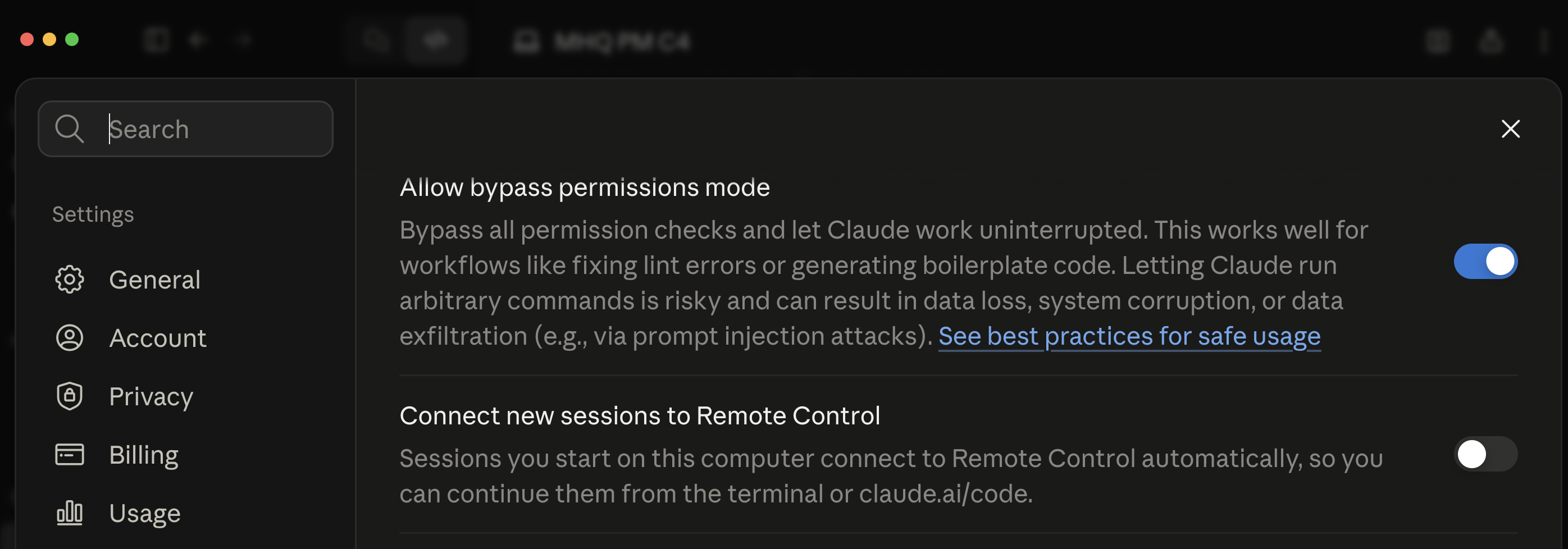
Why it sometimes looks like it turned itself offThe link drops when the laptop sleeps, you quit Claude Desktop, or you close the conversation. The always-on setting only kicks in for brand new conversations. Type /remote-control again and you are back. It catches everyone once.
Claude Desktop Settings, General, with the Connect new sessions to Remote Control toggle
Slide 62
Part E · Step 11

Find that session on your phone

  • Open the Claude app on your phone, tap the menu at the top left
  • Tap Code, the </> icon. Your Claude Code sessions are listed by name
  • Tap yours. You are in the same session as your laptop, synced in real time
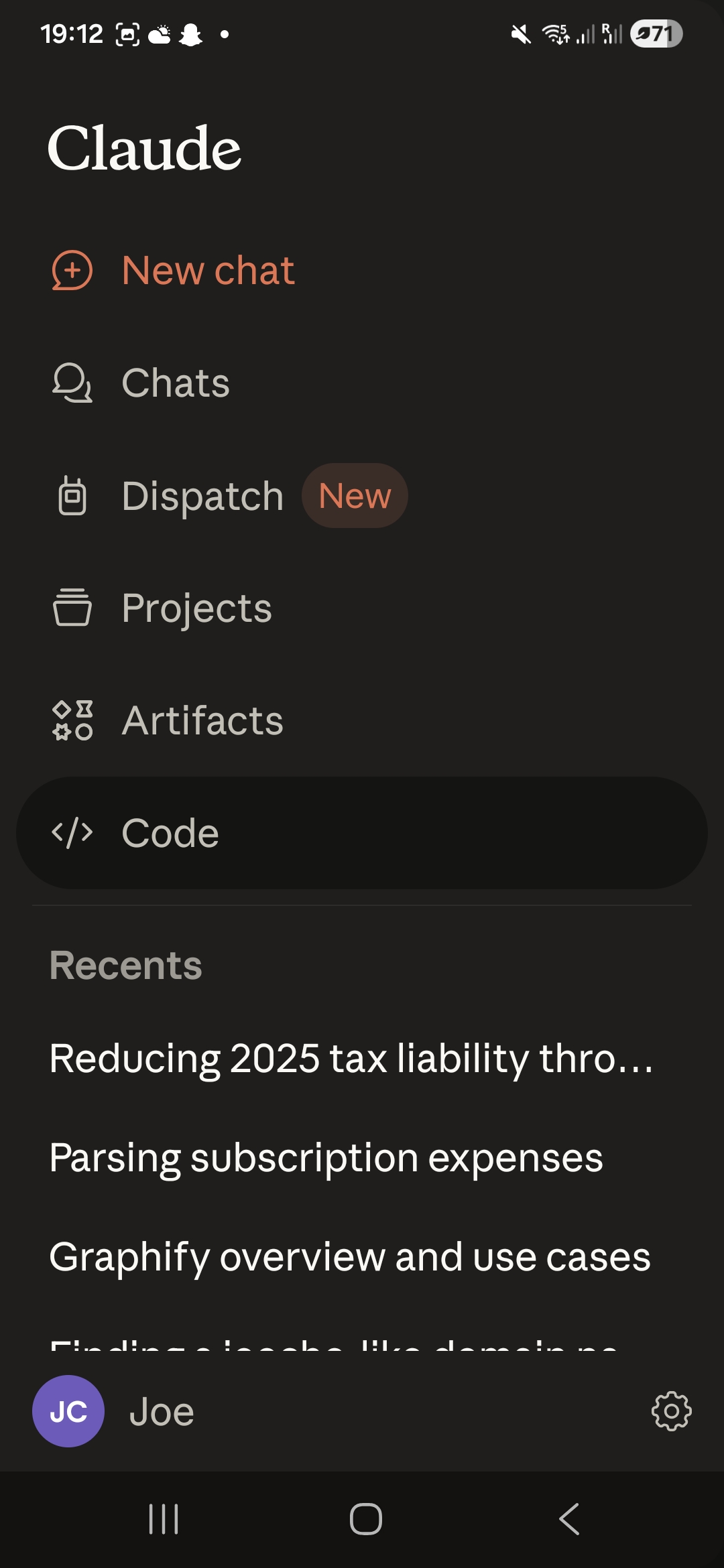
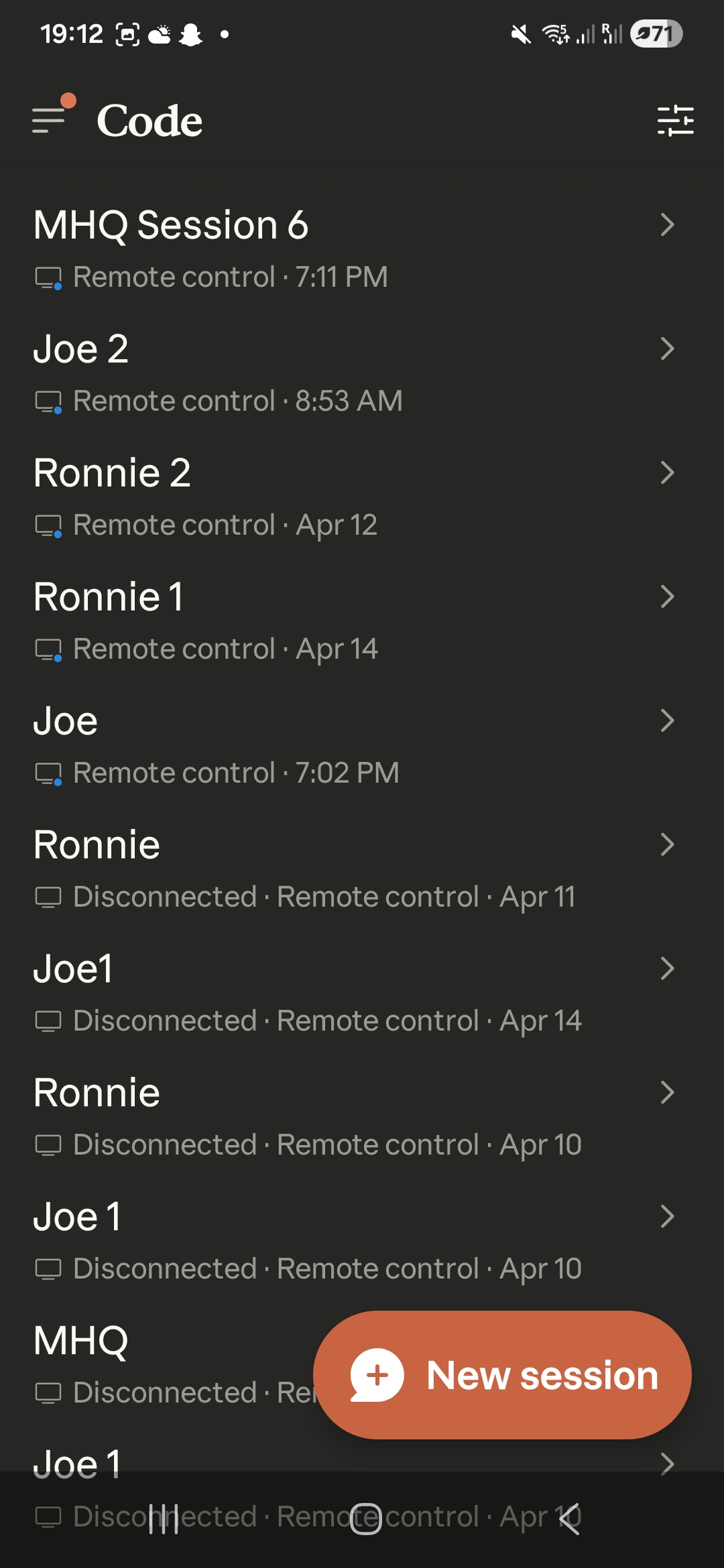
Leave it openThis is the Code section, not Chats. It is your portal now. You do not close it.
Claude phone app sidebar with Code highlightedClaude Code sessions listed by name on the phone
Slide 63
Part E · Step 12

Try a slash command on your phone

  • Tap into the message field and type a forward slash /
  • A menu of your installed skills appears. Tap any skill to run it
  • Try /speak-human. Your voice profile from Step 5 is already loaded, so paste any draft and it comes back sounding like you
Everywhere you are logged inSlash commands work identically on phone and laptop. Any skill you install on one device is available on all of them.
Slide 64
What you built today

You now own a library of everything you know, kept in order for you

Second brainbrain_dump_map with a master index, a project log, and a daily refresh.
Voice profileBuilt from your real writing. Used automatically for anything outward facing.
Claude knows youSOUL.md, USER.md and CLAUDE.md in your home folder, so every session starts from it.
In your pocketRemote Control on, Dispatch paired, your named session on your phone.

Checklist on the portal: connections checked, Speak Human installed, mega prompt finished, voice profile and USER.md reviewed, Remote Control on, phone paired.

Slide 65
Module 4

Connect Composio and Build Your Own Agents

Connect Google, build an Email Agent that stays, then make one for the work you actually do.

Slide 66
The big picture

One gateway, a thousand apps

Composio is the connection hub. Authenticate once, and it bridges 1,000 plus apps into Claude.

  • You log in once, inside Composio, not inside a prompt
  • Claude asks Composio, Composio talks to the app
  • Gmail, Drive, Sheets, Notion, Slack, Shopify, and more
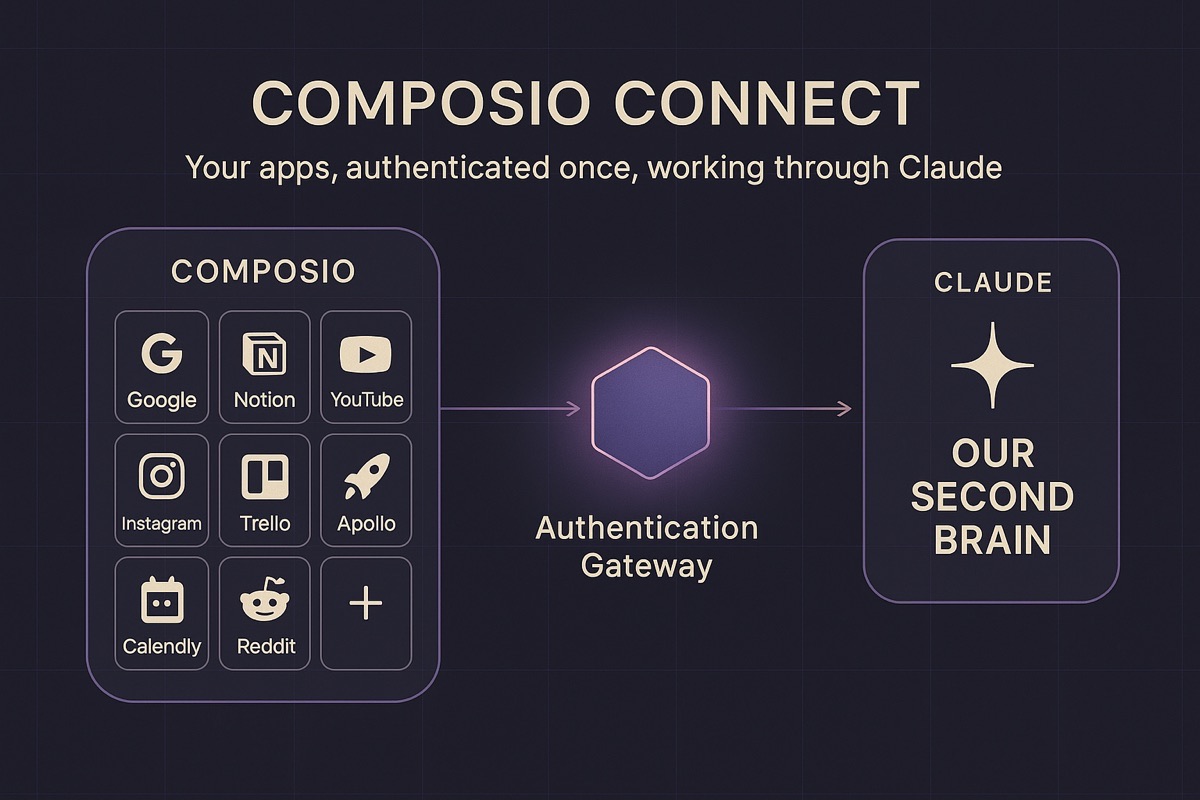
Go deeper Composio holds the authentication and the permissions for every app, so your passwords never touch a conversation.
Diagram showing Composio connecting Google, Notion, and other apps into Claude as one authentication gateway
Slide 67
Today

Connect Google, then build agents that stay

Three moves. We connect Google together, build an Email Agent, then branch into the app and agent that matter to you.

1. ConnectConnect Google through Composio, starting with the tools you will use in this session.
2. BuildProve Claude can read your inbox, then turn that one-off test into a standing Email Agent.
3. Make it yoursConnect a second app of your own, then build a custom agent around a real business job.
Slide 68
Step 1

Open Claude Code and create your Composio account

Two tabs open for the rest of this session: Claude Code, and app.composio.dev in your browser.

  • Run claude --dangerously-skip-permissions
  • Sign up free at app.composio.dev
  • Ask Claude to add Composio Connect
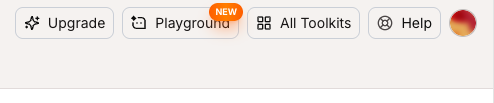
On screen This is the Composio top navigation. Click All Toolkits to find the apps you want to connect.
Composio navigation bar showing the All Toolkits button
Slide 69
Step 2

Find the three Google toolkits

Search for and connect Gmail, Google Sheets, and Google Drive. All three use OAUTH2, so the process is identical for each.

  • Gmail, so your AI can read and draft your email
  • Google Sheets, for models and tracking
  • Google Drive, to pull your documents into your brain

Do all three It is the same four clicks each time. Do them back to back and you are done in a few minutes.
Composio All Toolkits page showing Gmail, Google Sheets, and Google Drive
Slide 70
Step 3

Leave the defaults, create the auth config

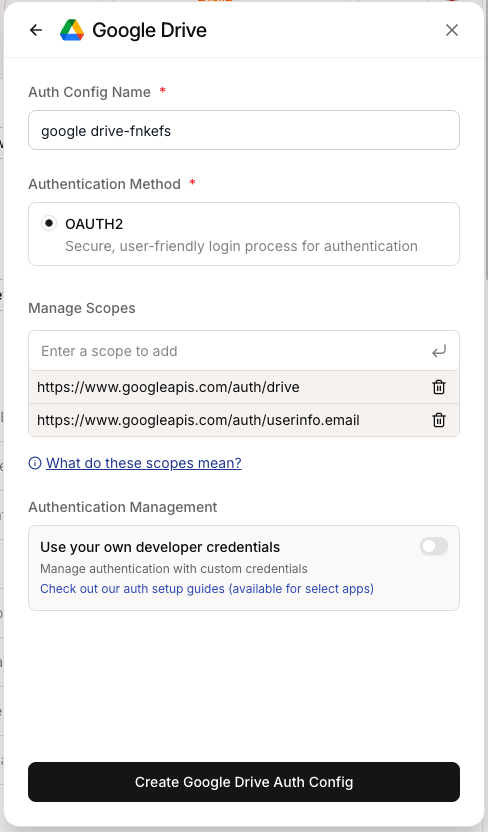
Click into each app, change nothing, and hit Create Auth Config at the bottom.

  • Do not touch the scopes or the advanced settings
  • The defaults are what we want for all three apps
  • One auth config per app, then move on
What this is The auth config is just the permission slip Composio uses to talk to that app on your behalf.
Composio Google Drive auth config setup screen with default settings
Slide 71
Step 4

Connect Account and sign in with Google

Once the auth config exists you land on the app page. Click Connect Account in the top right.

  • Click + Connect Account top right
  • Sign in with the Google account you use for business
  • Repeat for Gmail, Sheets, and Drive
Use the right account Connect the Google account your business actually runs on, not a personal one you never check.
Composio app page showing the Connect Account button in the top right
Slide 72
Step 5

Grab your API key and hand it to Claude

Settings, then the API Keys tab. Copy an existing key or create a new one.

  • Composio dashboard, Settings, API Keys
  • Copy a key, or click New API key
  • Paste it into Claude Code so it knows which account to use
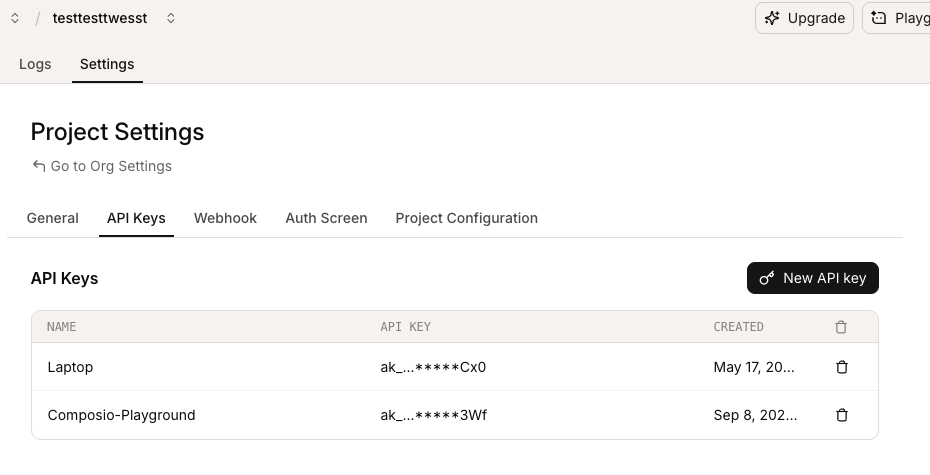
Say it plainly "Here is my Composio API key" and paste it. Claude stores it and wires up the connection for you.
Composio Project Settings API Keys tab showing existing keys
Slide 73
Checkpoint

This is what done looks like

Open Connected Apps. If Gmail, Google Sheets, and Google Drive are showing as connected, you are ready.

  • Three connections showing, one per app
  • Nothing in an error or pending state
  • Come back to this page for every new app you connect
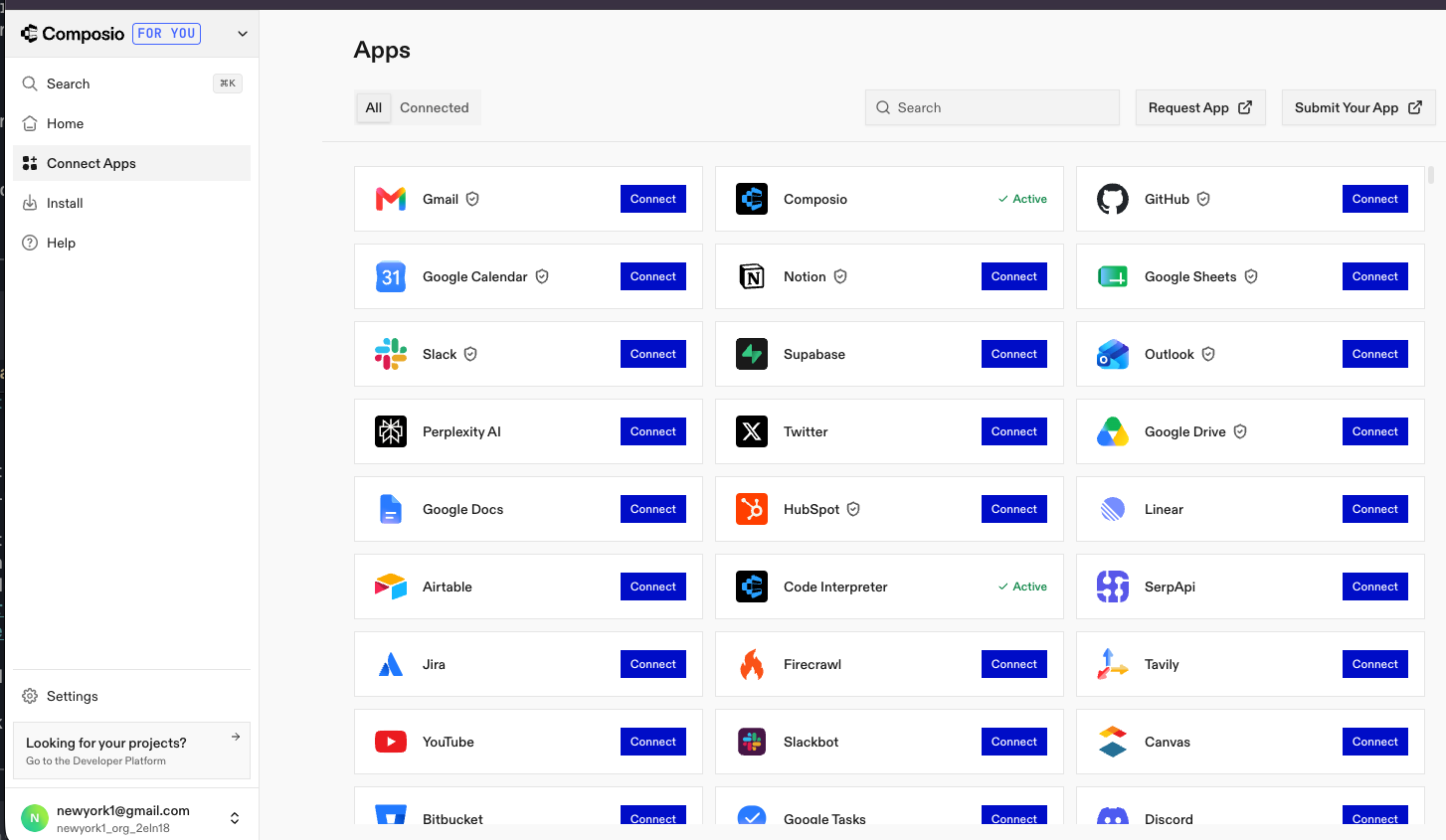
Stuck here? Say so now. Everything after this point assumes the connection is live, so we fix it together before we move on.
Composio Connected Apps screen showing Gmail, Google Sheets, and Google Drive connected
Slide 74
Prove it works

Three tests, right now

Do not take my word for it. Make it do something useful in the next five minutes.

  • Read my last 30 emails and tell me what actually needs me today
  • Email me a summary of what I built in this session
  • Pull my Drive documents into my brain dump
Go deeperThe third one is the sleeper: every proposal, contract, and note in your Drive becomes context your AI can reason over.
Slide 75
Build Your Email Agent

Turn the inbox test into an agent that stays

Claude just proved it can read your inbox. Now we make that job persist between sessions, so it is there whenever you need it.

Slide 76
Build the agent

Give Claude a job it can repeat

The build prompt does three things a normal request does not: it saves the agent, registers the skill, and runs it live.

  • Save the Email Agent to a file so it survives between sessions
  • Register it as a skill so Claude knows when to reach for it
  • Run it once live before you trust it with your inbox
  • Sort recent email into: reply today, real leads, routine, and safe to ignore or archive
Start with clarityIt gives a plain-English summary first, drafts routine replies in your voice, and flags high-stakes items for judgment, not just approval.
Safety: drafts onlyIt never sends or deletes anything. Every draft appears one at a time and waits for explicit approval on that specific email.
Slide 77
Make it real

Run it again, and confirm it sticks

Trigger the Email Agent again in this same session. That proves it is a real agent, not a one-off answer.

  • Use the trigger phrase and watch the agent reach for its saved skill
  • Confirm it reads recent email and follows the same triage process
  • If the trigger phrase does nothing, the skill did not register
What you are checkingThe agent file survives between sessions, and the registered skill tells Claude when to use it.
Slide 78
Your business, live

Now You're Going to Connect Something That's Relevant to You and Build an Agent by Yourself

This is the live branch-off. Pick the work that matters in your business, build it, and get support out loud as you go.

Slide 79
Connect your app

Pick the tool you open most and enjoy least

Notion is a great first choice. Choose the tool where one small agent would take real friction out of your day.

  • Open All Toolkits and find your app
  • Create Auth Config with the defaults
  • Connect Account and sign in
  • The same four clicks you used for Google
Honest tradeoffComposio is the fastest way to reach these apps, but it is not always the most token-efficient path. As members get more advanced, they will write direct API calls for the few tools they lean on hardest.
Composio All Toolkits page for finding an app to connect
Slide 80
Build it yourself

Use the pattern, then put a human gate where it matters

Answer three questions before Claude builds: what goes in, what comes out, and how often it should run.

  • Create the agent file, register it as a skill, and run it live on real data
  • Reading and organizing can run freely
  • Sending, posting, messaging a real person, moving money, or deleting data needs explicit approval every time
Your design decisionChoose exactly where the human gate sits before the agent touches anything consequential.
Get stuck out loudThis is why we do it live. Say so in the session instead of trying to work around it alone afterward.
Slide 81
What you built today

Your AI can now work inside the tools that run your business.

Not a demo. A repeatable way to connect, build, and keep control.

Connected GoogleConnected your Google tools through Composio and proved Claude can read your inbox.
Built an Email AgentCreated a standing inbox agent that drafts safely and waits for email-by-email approval.
Made it yoursConnected a second app, built your own custom agent, and learned the pattern: inputs, outputs, frequency, and the human gate.
Slide 82
Session 7

Branding Agent

Your system can already reach your tools. Now we sharpen what it says on your behalf: your mission, your offer, your positioning, your funnel.

Slide 83
What we are doing today

Eight moves, one session

We install it, point it at your real business, and you leave with one thing you are actually going to change.

  • Install the agent, then tighten your mission and your offer
  • Build your first brand brain, the file everything else inherits from
  • Score your website for ideal customer fit, then map your funnel end to end
  • Pick better entry points, then commit to one upgrade you finish this week
This is a working sessionWe are using your real site and your real offer, not a made up example. Bring the awkward version.
Slide 84
Before we start

Four things in front of you

  • Your website or landing page URL, whichever page people actually land on
  • Your current offer in one rough paragraph: who it is for, what changes, what you charge
  • Anything brand related you already have: old taglines, a bio, testimonials, pricing
  • Claude Code updated, so the install does not trip on an old version
Rough is betterDo not polish the offer before you bring it. We are going to take it apart together, and a polished version just hides the soft spots.
Slide 85
The thing you are building

What a brand brain actually is

One file that holds who you serve, what you promise, and how you sound. Every piece of copy after this starts from it instead of from nothing.

  • Your positioning: for whom, you are the only what, and why they should believe it
  • Your ideal customer in their own words, not demographics
  • Your voice rules, including the things you never say
  • Your proof: real testimonials, real numbers, nothing invented
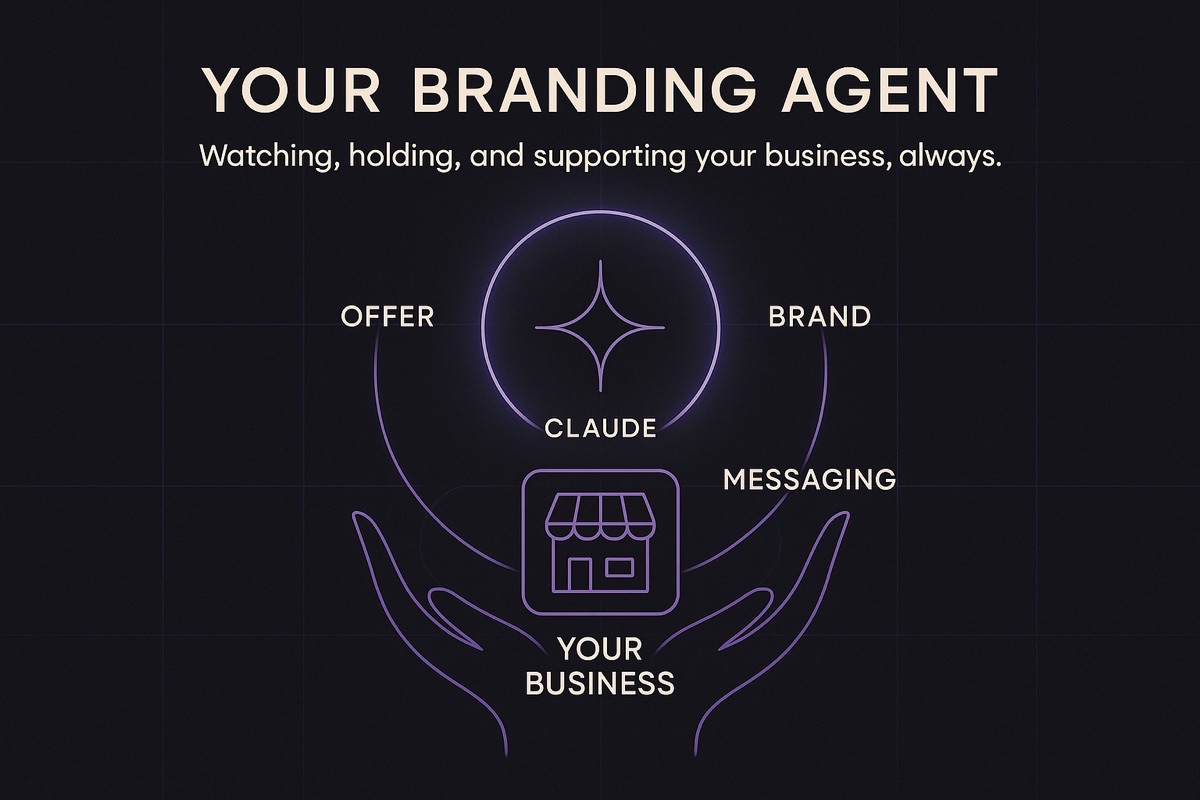
Branding Agent diagram showing offer, positioning, and brand brain feeding into consistent messaging
Slide 86
Who this agent learned from

It did not learn branding from vibes

Nineteen frameworks and thirteen playbooks, every one built from named, published work with sources on file.

Offer and persuasionAlex Hormozi, Eugene Schwartz, Donald Miller
PositioningApril Dunford, Marty Neumeier, Al Ries and Jack Trout, Geoffrey Moore
Brand equityDavid Aaker, Kevin Lane Keller, Jean-Noel Kapferer, Byron Sharp
Narrative and voiceAndy Raskin, Nancy Duarte, Simon Sinek, Denise Lee Yohn
Cult brands and loyaltyDouglas Atkin, Kevin Roberts, Carl Jung
The agenciesWolff Olins, Landor, Interbrand, Pentagram, COLLINS, Red Antler, Gretel, IDEO, Prophet, Siegel and Gale
Slide 87
What that looks like

One parent, many children

Your top level brain sets the voice. Each project inherits it, and an offer can hang off any project that needs its own rules.

  • The parent holds your voice, your audience, and your throughline
  • Each project adds its own positioning and its own proof
  • An offer only splits out when its audience or promise genuinely differs
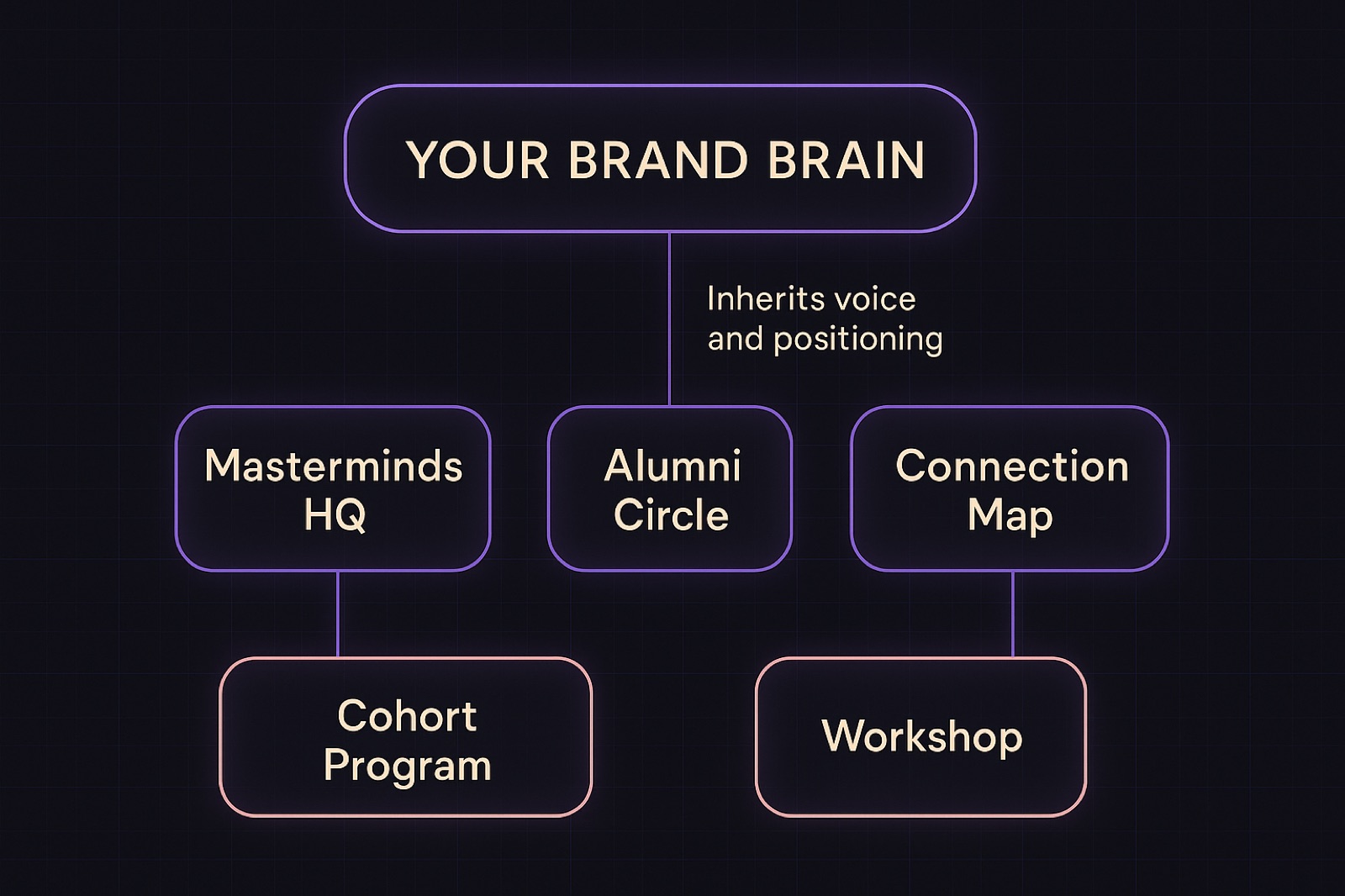
Brand brain hierarchy: one top level brain feeding Masterminds HQ, Alumni Circle, and Connection Map, with Cohort Program and Workshop below
Slide 88
How to structure it

One for you, one for each thing you sell

The top level is who you are across everything. Under it, each project or offer gets its own, and inherits from the parent.

Top level: youYour personal brand brain. Your throughline, your audience, your voice. This one changes slowly.
Each projectA brand brain per business or product. Inherits the parent voice, adds its own positioning and proof.
Each offer, if it earns itA separate offer can need its own rules. Split it when the audience or the promise genuinely differs, not just because it has a different price.
The ruleA child brand brain never contradicts the parent. If it has to, you do not have a sub brand, you have a second business.
Slide 89
From my own brand brain

What a finished positioning statement sounds like

  • For purpose driven founders, creatives, and conscious professionals
  • Who are building careers and public voices that do not quite feel like them, and cannot find the throughline
  • I help them take brave steps toward alignment in their careers, their connections, and their communication
  • That no career coach or business course provides, because it is not a formula, it is a proof of concept
Notice what it is notNo adjectives doing the work. No premium, world class, or innovative. If a sentence could sit on a competitor site unchanged, it is not finished.
Slide 90
Install it

One prompt, and it is yours

Same move as every other agent you have installed this cohort.

  • Run claude with permissions skipped, the way you have all cohort
  • Paste the Branding Agent install prompt from the portal
  • It registers itself, so your system knows when to reach for it
Why an agent and not a chatA chat forgets. An agent keeps your brand brain on file, so every hook, email, and sales page after today starts from the same truth.
Slide 91
Start here

Hone the mission before you touch the words

Branding without a settled mission is decoration. The agent will happily write you beautiful copy for a business you do not actually want to run.

  • What are you actually here to do, in one sentence, in your own language
  • Who is it for, and just as importantly, who is it not for
  • What has to stay true even when it costs you a sale
Do this part out loudThe mission is the one piece the agent cannot infer from your website. It can only sharpen what you give it.
Slide 92
Then the offer

Tighten the offer, then everything inherits from it

Who it is for, what changes for them, why you, and what it costs. Every downstream asset gets easier once this is settled.

  • Name the transformation, not the deliverable
  • Say who it is not for, out loud, in the offer itself
  • Ground every claim in what you actually deliver today
No borrowed proofTell it to work only from results you have really produced. No invented stats, no someone elses case study, no aspirational numbers.
Slide 93
Build it

First pass brand brain, on file

Now it writes the file. This is the artifact you reuse for the rest of the cohort and well past it.

  • Feed it your mission, your offer, and anything brand related you brought
  • Let it draft, then read every line and correct what is not true
  • Save it into your project so every future agent can find it
Add to it, do not replace itA brand brain gets better by accumulating truth. Treat it as a living file, not a one time deliverable.
Slide 94
The most important slide today

Not all suggestions are good suggestions.

This agent is confident, fast, and well read. None of that makes it right about your business.

It does not know what you refuseIt will suggest tactics that work in general and are wrong for you. Cheap urgency, invented scarcity, a tone you would never use.
It optimises for what it can seeIt reads your site and your words. It cannot see your gut read on a client, your capacity, or the promise you already made someone.
You are the editorTake what is true, cut what is not, and say why out loud. Rejecting a suggestion for a real reason is the work.
Slide 95
Point it at reality

Score your site for ideal customer fit

Now it knows your offer, put it on the page people actually land on.

  • Score the page for fit with the customer you just defined
  • Get concrete copy fixes, line by line, not general advice
  • Find what a first time visitor cannot tell in five seconds
Expect it to stingThe first audit usually shows the page is written for you, not for them. That is the normal result, not a bad one.
Slide 96
Map it

Map the funnel, then find the leak

From free value through to high ticket, laid out so you can see where people actually stop.

  • Map every step from first contact to paid
  • Mark where people drop, and why, step by step
  • Name the one step doing the most damage
The uncomfortable findingIt is almost never traffic. It is usually the step right after the thing that is working.
Slide 97
Widen the top

Better giveaways and entry points

Ranked by fit with your customer and by how much of it you can automate.

  • Generate entry points that match the customer, not generic lead magnets
  • Rank them by fit first, then by how automatable they are
  • Kill anything you would resent making every week
Sustainable beats cleverThe best entry point is the one still running in three months, not the one that looked smartest on the day.
Slide 98
Before you leave

Pick one upgrade and actually ship it

This agent will hand you twenty good ideas. Twenty good ideas at ten percent each is worse than one finished.

Do not scatter.
One upgrade, this week, finished.
Name it out loudSay the one thing you are changing before you close your laptop. Said out loud is the difference between a plan and a nice document.
Slide 99
Session 8

Your First Mission Control

One place to see what matters, what is moving, and who needs your attention.

Slide 100
What we are doing today

Five moves, one session

We make the business visible, look inside my real system, then install the first version of yours.

  • Understand what Mission Control is and what it is for
  • See how tasks, projects, and people connect
  • Watch three real examples from my business
  • Install your first Mission Control and prove it is running
  • Create your own mission control dashboard.
This is a working sessionBring the real messy version of your business. We are building something you can open tomorrow morning and actually use.
Slide 101
What Mission Control actually is

The front door to your business

It is the place you open to see what needs doing, what is moving, and what needs a decision from you.

WorkThe next task is visible instead of buried in a note, message, or browser tab.
MovementYour active projects show what is progressing, waiting, or quietly stuck.
PeopleYour leads and clients keep their context, history, and next follow-up attached.
It can also hold
Finances Databases Processes Vercel Codex Portal Mastermind
Not another place to rememberThe point is to do less remembering. Your brain chooses what matters. The system holds the rest.
Slide 102
Your business, visible

One dashboard. Four living systems.

01Task BoardWhat needs to happen next?
02ProjectsWhat is moving, waiting, or done?
03CRMWho needs context or follow-up?
04OperationsWhat powers the business behind the scenes?

Tasks, projects, people, and operations stop living in separate worlds. That is when the scattered pieces start acting like one business.

Slide 103
How I use it

Three things I used to hold in my head

These are real parts of my business, not made-up examples for the session.

BillingWhat is due, what was sent, what was paid, and what needs a follow-up.
CRMEvery lead, contact, and conversation in one pipeline, with the next move visible.
Post-Session Wrap-UpsNotes, decisions, tasks, and follow-ups turned into movement before the session goes cold.
The common threadNothing important depends on me remembering it at exactly the right moment.
Slide 104
What I will show you

Two systems worth opening live

The CRM shows how relationships stay connected. Post-session wrap-ups show how a conversation becomes work.

Slide 105
Live Demo 1 of 2

The CRM

Every lead, client, collaborator, and conversation in one place, so the relationship does not depend on my memory.

Good CRM is humanIt keeps the context that makes a follow-up feel like I was actually paying attention.
Slide 106
Live Demo 2 of 2

Post-Session Wrap-Ups

Watch a session become organized notes, clear next steps, project tasks, and follow-ups while the conversation is still fresh.

The session endsThe useful decisions do not disappear into a recording nobody watches again.
Slide 107
What you are building today

One Mission Control that is yours

The first version only needs three useful surfaces.

Build 01Task BoardA clean place for what needs doing now, later, and eventually.
Build 02ProjectsA view of the few things actually moving your business forward.
Build 03CRMA simple home for leads, clients, collaborators, and the next follow-up.
Slide 108
Build 1 of 3

Your Task Board

One place for the work, with enough structure to tell you what deserves attention next.

  • See what is ready, in progress, waiting, and done
  • Keep the next action visible without carrying it in your head
  • Connect a task to the project and person it belongs to
No productivity theatreIf the board creates more admin than clarity, it is not doing its job.
Slide 109
Build 2 of 3

Your Projects Board

A short list of the things actually in motion, so half-started ideas stop pretending they are priorities.

  • See which projects are active, waiting, or complete
  • Know the next move without reopening every document
  • Keep tasks connected to the outcome they are supposed to create
Start small on purposeBuild the system that helps you wake up clearer tomorrow, not the company you might have in five years.
Slide 110
Build 3 of 3

Your CRM, installed inside the same system

You will confirm it is there, opens correctly, and is ready for the people your business depends on.

Installed todayThe CRM lives inside the same Mission Control navigation as Tasks and Projects.
No live records neededWe do not need to add or change real customer data to prove the install worked.
Used laterWe will use the CRM in a later session, when it gets the time it deserves.
Safe by defaultEmail sending stays off. CRM automations stay off until you choose to turn them on.
Slide 111
Make it yours

In the session, you'll build something that's useful to you.

Everyone's will be different.

Slide 112
What you built today

Your business has a front door now.

A working Mission Control with the first three surfaces connected and ready.

Task BoardThe next work is visible.
ProjectsThe work in motion has a home.
CRMThe people and follow-ups have a place to live.
Today is the installLater sessions teach the deeper moves inside it. For now, it is running, it is yours, and you know what it is for.
Slide 113

Stay Connected

QR code to connect with Joe Che
Connect with Joe Che
QR code to message Joe Che on WhatsApp
Joe's WhatsApp

Scan either one. The first opens a short form so I know where you are in your journey, the second messages me directly on WhatsApp. I read every one myself.